Sigma (sigma.tuke.sk) je školský linuxový server s Apache, PHP 8.1 a databázou MariaDB. Každý študent na ňom má domovský priečinok a v ňom public_html. Čo tam dáš, je viditeľné na adrese
https://sigma.tuke.sk/student/meno.priezvisko/
(ak máš v školskom e-maile číslo, napr. jan.novak.2@student.tuke.sk, je aj v adrese: …/student/jan.novak.2/).
Na sigma sa kód nepíše. Píše sa v Kubeflow a na sigma sa automaticky kopíruje pri každom uložení (rozšírenie SFTP). Sigma je len miesto, kde stránka beží a kde ju skúšaš.
Prístup z tvojho počítača (prehliadač, WinSCP, PuTTY) vyžaduje mimo školy VPN (návod 00). Z Kubeflow VPN netreba.
Sigma (sigma.tuke.sk) is the university Linux server with Apache, PHP 8.1 and the MariaDB database. Every student has a home folder there with public_html inside. Whatever you put there is visible at
https://sigma.tuke.sk/student/name.surname/
(if your university e-mail contains a number, e.g. jan.novak.2@student.tuke.sk, it is in the address too: …/student/jan.novak.2/).
Code is not written on sigma. It is written in Kubeflow and copied to sigma automatically on every save (the SFTP extension). Sigma is only the place where the page runs and where you test it.
Access from your own computer (browser, WinSCP, PuTTY) needs the VPN off campus (guide 00). From Kubeflow no VPN is needed.
1. Prihlásenie na sigma1. Logging in to sigma
Prihlasovacie meno je tvoj TUKE login (napr. jn123ab), heslo TUKE heslo. Tri cesty:
a) Z Kubeflow (terminal vo VS Code), používame na cvičeniach:
ssh jn123ab@sigma.tuke.sk
Ak si urobil návod 02 časť 5, prihlási ťa bez hesla. Prompt sa zmení na jn123ab@sigma:~$, si na sigma. Späť do Kubeflow: exit.
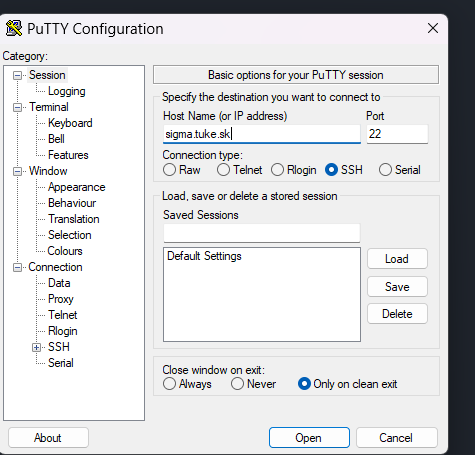
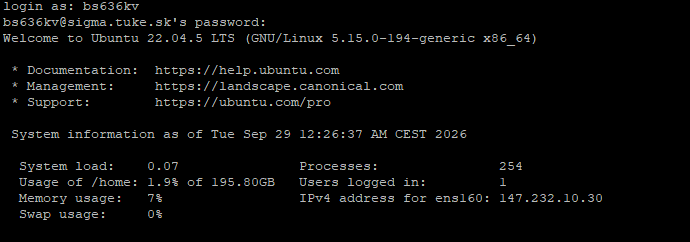
b) PuTTY (Windows, z vlastného počítača): stiahni z putty.org, Download PuTTY, putty.exe (64-bit x86). Spusti, Host Name sigma.tuke.sk, Port 22, Open. Pri prvom pripojení potvrď fingerprint (Accept). login as: TUKE login, password: TUKE heslo (nič sa nezobrazuje).
c) Windows terminál: Štart, „Terminal“, ssh jn123ab@sigma.tuke.sk. Rovnaké ako a).
The user name is your TUKE login (e.g. jn123ab), the password is your TUKE password. Three ways:
a) From Kubeflow (the terminal in VS Code), used in the lab:
ssh jn123ab@sigma.tuke.sk
If you did guide 02 part 5, it logs you in without a password. The prompt changes to jn123ab@sigma:~$, you are on sigma. Back to Kubeflow: exit.
b) PuTTY (Windows, from your own computer): download from putty.org, Download PuTTY, putty.exe (64-bit x86). Run it, Host Name sigma.tuke.sk, Port 22, Open. On the first connection confirm the fingerprint (Accept). login as: TUKE login, password: TUKE password (nothing is shown).
c) Windows terminal: Start, "Terminal", ssh jn123ab@sigma.tuke.sk. The same as a).
2. WinSCP: prenos súborov a prvé priečinky2. WinSCP: file transfer and the first folders
WinSCP slúži na kopírovanie súborov medzi tvojím počítačom a sigma (protokol SFTP) a na prácu s priečinkami klikaním. Použiješ ho na prvé nastavenie a potom občas (nahrať Adminer, obrázok, záloha keď niečo nejde).
- Stiahni a nainštaluj z winscp.net (Installation package).
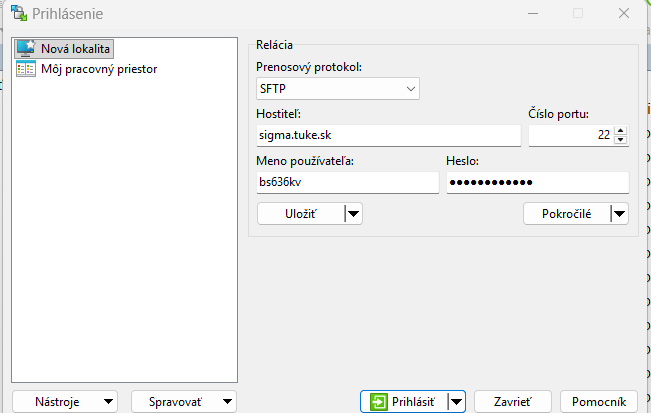
- Spusti, okno Login, New Site: File protocol SFTP, Host name
sigma.tuke.sk, Port number22, User name TUKE login. Heslo nevypĺňaj. - Save, názov
sigma, OK. Nabudúce sa session vyberie zo zoznamu vľavo. - Login, zadaj heslo (pýta sa pri každom pripojení). Prvýkrát potvrď fingerprint (Yes).
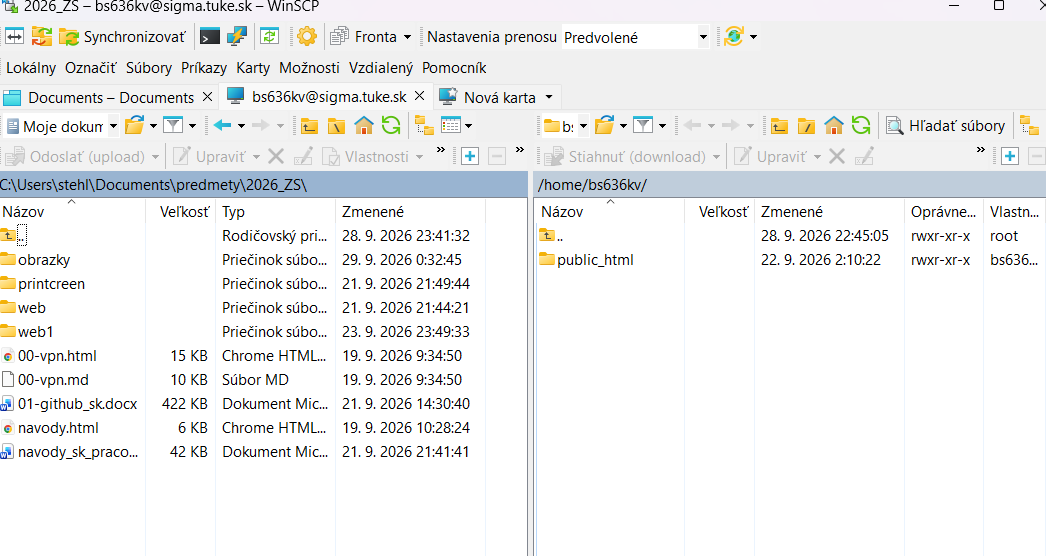
- Vľavo je tvoj počítač, vpravo sigma (tvoj domovský priečinok). Súbory presúvaš ťahaním myšou.
Vytvorenie priečinkov (raz)
V pravom paneli (sigma):
- Ak nevidíš
public_html: pravý klik do prázdneho miesta, New, Directory,public_html, OK. - Otvor
public_html(dvojklik). - Vytvor priečinok pre predmet podľa pokynu učiteľa (napr.
tialeboit): pravý klik, New, Directory.
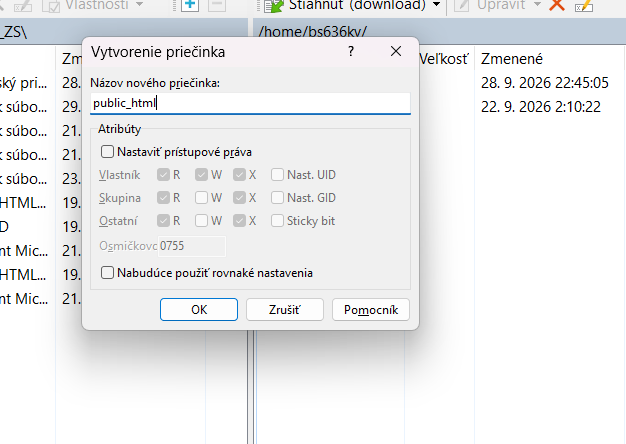
Výsledok:
/home/jn123ab/
└── public_html/       →  https://sigma.tuke.sk/student/jan.novak/
    ├── ti/            →  https://sigma.tuke.sk/student/jan.novak/ti/
    └── it/            →  https://sigma.tuke.sk/student/jan.novak/it/
Priečinky pre jednotlivé cvičenia (cv01, cv02…) už nevytváraš ručne, vzniknú samy pri kopírovaní z Kubeflow.
To isté sa dá urobiť v termináli (po ssh jn123ab@sigma.tuke.sk):
mkdir -p ~/public_html/ti ~/public_html/it
chmod 755 ~ ~/public_html
Druhý riadok nastaví práva, aby server smel do priečinkov nazrieť.
Overenie: otvor https://sigma.tuke.sk/student/meno.priezvisko/. Zobrazí sa (zatiaľ prázdny) zoznam alebo stránka bez chyby 404.
WinSCP copies files between your computer and sigma (the SFTP protocol) and lets you work with folders by clicking. You use it for the first setup and then occasionally (uploading Adminer, an image, a fallback when something fails).
- Download and install from winscp.net (Installation package).
- Run it, the Login window, New Site: File protocol SFTP, Host name
sigma.tuke.sk, Port number22, User name your TUKE login. Leave the password empty. - Save, name
sigma, OK. Next time you pick the session from the list on the left. - Login, enter the password (it asks at every connection). The first time confirm the fingerprint (Yes).
- Your computer is on the left, sigma on the right (your home folder). You move files by dragging.
Creating the folders (once)
In the right panel (sigma):
- If you do not see
public_html: right click an empty spot, New, Directory,public_html, OK. - Open
public_html(double click). - Create the course folder as your teacher says (e.g.
tiorit): right click, New, Directory.
Result:
/home/jn123ab/
└── public_html/       →  https://sigma.tuke.sk/student/jan.novak/
    ├── ti/            →  https://sigma.tuke.sk/student/jan.novak/ti/
    └── it/            →  https://sigma.tuke.sk/student/jan.novak/it/
You do not create the folders for individual labs (cv01, cv02…) by hand; they appear by themselves when copying from Kubeflow.
The same can be done in the terminal (after ssh jn123ab@sigma.tuke.sk):
mkdir -p ~/public_html/ti ~/public_html/it
chmod 755 ~ ~/public_html
The second line sets the permissions so that the server may look into the folders.
Check: open https://sigma.tuke.sk/student/name.surname/. A (still empty) listing or a page without error 404 appears.
3. Prepojenie Kubeflow → sigma (SFTP, raz)3. Linking Kubeflow → sigma (SFTP, once)
Toto je najdôležitejšia časť. Po nastavení sa každý súbor, ktorý v Kubeflow uložíš v priečinku web, automaticky skopíruje na to isté miesto v public_html na sigma.
- V Kubeflow vo VS Code máš otvorený priečinok WEB (návod 02 časť 6). Ak Explorer ukazuje JOVYAN, najprv otvor
/home/jovyan/web/. - Stlač Ctrl + Shift + P, napíš
sftp configa klikni SFTP: Config. (V poli musí byť na začiatku>. Ak tam nie je, hľadáš súbory, nie príkazy.) - Otvorí sa súbor
sftp.jsonso vzorovým obsahom. Celý ho označ (Ctrl + A) a nahraď týmto, zmeň len loginjn123ab(dvakrát):
{
    "name": "sigma",
    "host": "sigma.tuke.sk",
    "protocol": "sftp",
    "port": 22,
    "username": "jn123ab",
    "privateKeyPath": "/home/jovyan/.ssh/id_ed25519",
    "remotePath": "/home/jn123ab/public_html",
    "uploadOnSave": true,
    "useTempFile": false,
    "openSsh": false,
    "ignore": [".vscode", ".git", "**/.git/**", ".DS_Store"]
}
Čo to znamená: privateKeyPath je kľúč, ktorý si v návode 02 dal na sigma, preto to ide bez hesla; remotePath je miesto na sigma, kam sa kopíruje; uploadOnSave znamená pri každom uložení; ignore je to, čo sa nekopíruje (Git a nastavenia VS Code na sigma nepatria).
- Súbor sa uloží sám. V Explorer pribudol
.vscode/sftp.json.
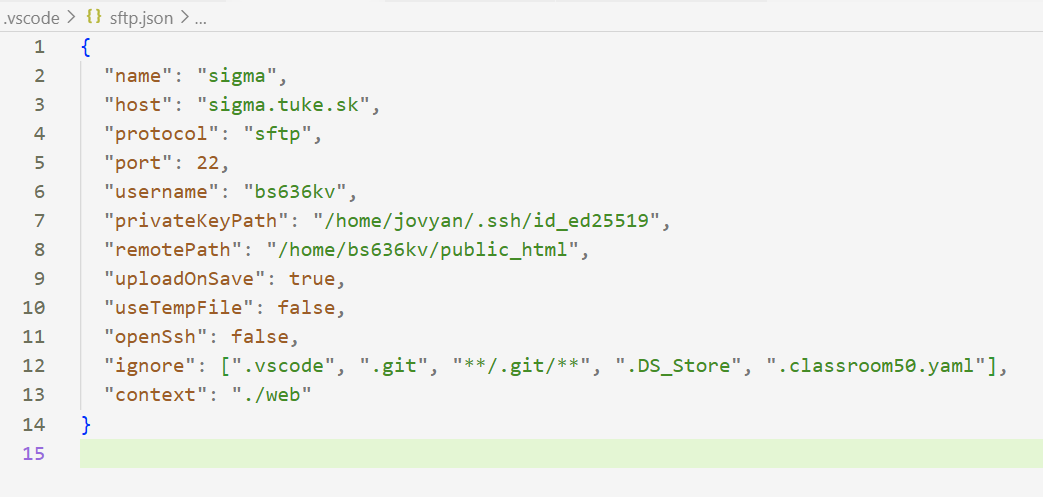
Skúška:
- V Explorer: pravý klik na WEB, New Folder…,
ti(alebo podľa predmetu). V ňom pravý klik, New File…,index.html. Napíš!a Tab, do<body>daj<h1>Funguje</h1>. - Prestaň písať a počkaj 2 sekundy. Dole na fialovej stavovej lište sa na chvíľu ukáže
done index.html: súbor je na sigma.

- Otvor
https://sigma.tuke.sk/student/meno.priezvisko/ti/. Zobrazí sa „Funguje“. Ak vidíš starú verziu, obnov stránku (F5).
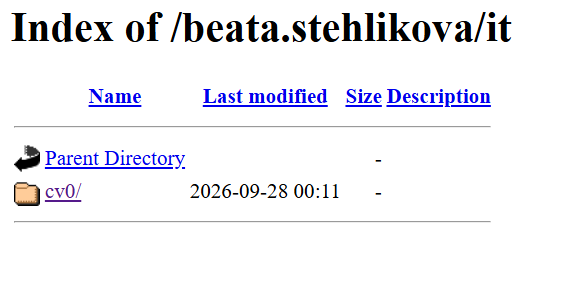
Od tejto chvíle platí: uložiť v Kubeflow = je na sigma. Nič iné netreba.
Užitočné príkazy rozšírenia (pravý klik na priečinok alebo súbor v Explorer, úplne dole v menu; v novšej verzii bez „SFTP:“ na začiatku):
- Upload Folder: nahrá celý priečinok naraz (napr. po
git clonenového zadania, alebo pocomposer install). - Download / Sync Remote → Local: stiahne súbor zo sigma do Kubeflow (ak si ho omylom zmenil tam).
- Reveal in Remote Explorer: zoznam súborov na sigma.
Na sigma sa nič neupravuje. Ak treba opravu, urob ju v Kubeflow. Súbory, ktoré na sigma nahráš inak (WinSCP), rozšírenie nevidí a pri ďalšom uložení z Kubeflow ich prepíše.
This is the most important part. After the setup, every file you save in Kubeflow inside the web folder is copied automatically to the same place in public_html on sigma.
- In Kubeflow, VS Code has the WEB folder open (guide 02 part 6). If Explorer shows JOVYAN, open
/home/jovyan/web/first. - Press Ctrl + Shift + P, type
sftp configand click SFTP: Config. (The field must start with>. Without it you are searching files, not commands.) - The file
sftp.jsonopens with sample content. Select all of it (Ctrl + A) and replace it with this; change only the loginjn123ab(twice):
{
    "name": "sigma",
    "host": "sigma.tuke.sk",
    "protocol": "sftp",
    "port": 22,
    "username": "jn123ab",
    "privateKeyPath": "/home/jovyan/.ssh/id_ed25519",
    "remotePath": "/home/jn123ab/public_html",
    "uploadOnSave": true,
    "useTempFile": false,
    "openSsh": false,
    "ignore": [".vscode", ".git", "**/.git/**", ".DS_Store"]
}
What it means: privateKeyPath is the key you put on sigma in guide 02, which is why no password is needed; remotePath is the place on sigma to copy to; uploadOnSave means on every save; ignore is what is not copied (Git and VS Code settings do not belong on sigma).
- The file saves itself.
.vscode/sftp.jsonappeared in Explorer.
Test:
- In Explorer: right click WEB, New Folder…,
ti(or as your course says). Inside it right click, New File…,index.html. Type!and Tab, and put<h1>Funguje</h1>into<body>. - Stop typing and wait 2 seconds. The purple status bar at the bottom briefly shows
done index.html: the file is on sigma.
- Open
https://sigma.tuke.sk/student/name.surname/ti/. "Funguje" appears. If you see an old version, refresh the page (F5).
From now on: saved in Kubeflow = on sigma. Nothing else is needed.
Useful commands of the extension (right click a folder or file in Explorer, at the very bottom of the menu; newer versions show them without “SFTP:” in front):
- Upload Folder: uploads a whole folder at once (e.g. after
git cloneof a new assignment, or aftercomposer install). - Download / Sync Remote → Local: downloads a file from sigma into Kubeflow (if you changed it there by mistake).
- Reveal in Remote Explorer: lists the files on sigma.
Nothing is edited on sigma. If something needs fixing, fix it in Kubeflow. Files you upload to sigma another way (WinSCP) are invisible to the extension, and the next save from Kubeflow overwrites them.
4. Adminer: databáza v prehliadači4. Adminer: the database in the browser
Adminer je jeden PHP súbor, ktorý si nahráš do svojho public_html a cez prehliadač v ňom pracuješ s databázou (tabuľky, dáta, SQL). Nič sa neinštaluje.
- Stiahni z adminer.org, Adminer for MySQL (English).
- Premenuj stiahnutý súbor na
adminer.php. - Nahraj ho do
public_htmlna sigma: cez WinSCP (ťahaním), alebo ho ulož v Kubeflow doweb/adminer.phpa SFTP ho nahrá samo. - Otvor
https://sigma.tuke.sk/student/meno.priezvisko/adminer.php(mimo školy s VPN). - Prihlásenie: System MySQL, Server
localhost, Username tvoj databázový login (meno_priezvisko, malé písmená, bez diakritiky, s podčiarkovníkom), Password dostaneš na cvičení, Database nechaj prázdne. - Po prihlásení vidíš svoju databázu (rovnaký názov ako login). Vpravo hore si môžeš prepnúť jazyk.
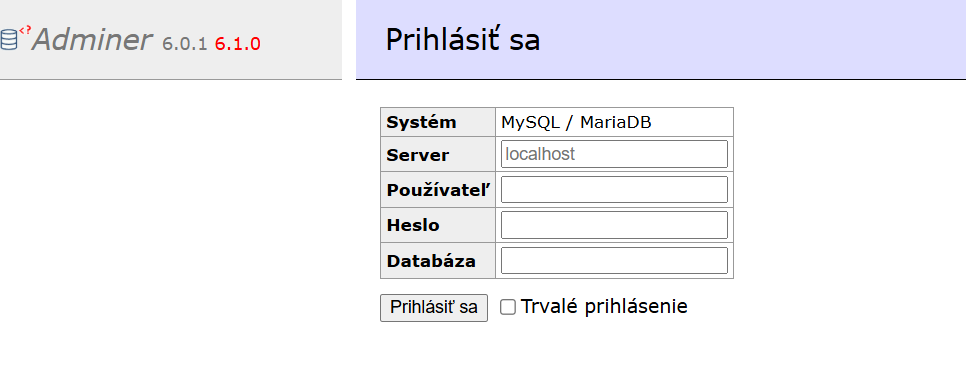
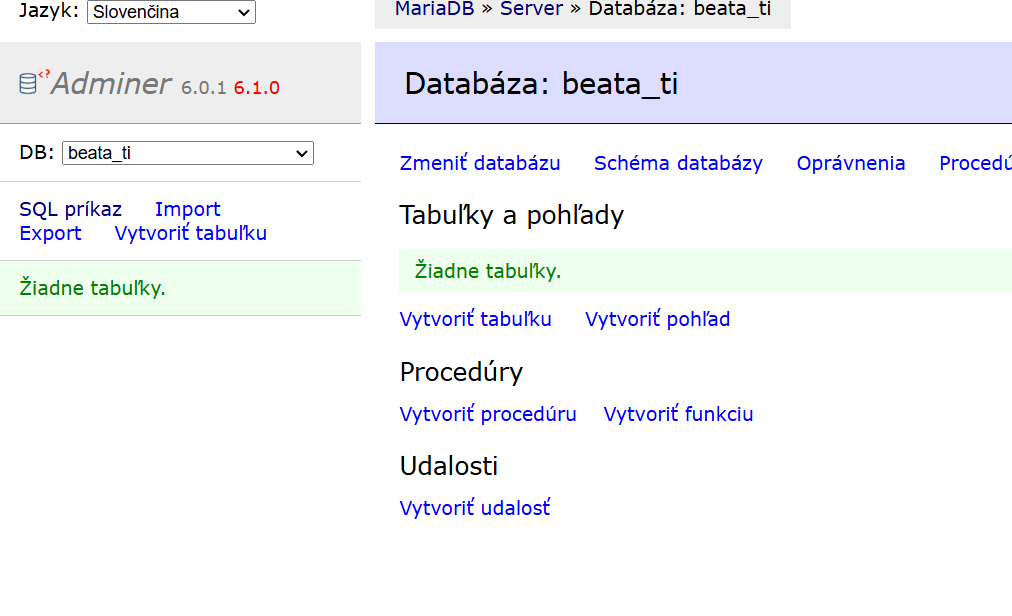
Tvoja databáza je len tvoja: môžeš v nej vytvárať a mazať tabuľky, vkladať dáta, spúšťať SQL. Iné databázy nevidíš a novú vytvoriť nemôžeš.
V Adminer je pri databáze odkaz Drop. Zmaže celú databázu. Ak sa to stane, napíš učiteľovi, založí ju znova (dáta sú preč).
Adminer is a single PHP file that you upload into your public_html; in the browser you then work with your database (tables, data, SQL). Nothing gets installed.
- Download from adminer.org, Adminer for MySQL (English).
- Rename the downloaded file to
adminer.php. - Upload it into
public_htmlon sigma: through WinSCP (dragging), or save it in Kubeflow asweb/adminer.phpand SFTP uploads it by itself. - Open
https://sigma.tuke.sk/student/name.surname/adminer.php(off campus with the VPN). - Login: System MySQL, Server
localhost, Username your database login (name_surname, lowercase, no accents, with an underscore), Password you get in the lab, Database leave empty. - After logging in you see your database (the same name as the login). You can switch the language at the top right.
The database is yours alone: you can create and drop tables, insert data, run SQL. You do not see other databases and cannot create a new one.
Next to the database Adminer shows a Drop link. It deletes the whole database. If that happens, write to the teacher, who creates it again (the data is gone).
5. Základné príkazy Linuxu (keď si na sigma v termináli)5. Basic Linux commands (when you are on sigma in the terminal)
| Príkaz | Čo robí |
|---|---|
pwd |
vypíše, v ktorom priečinku si |
ls |
zoznam súborov (ls -la aj skryté, s detailmi) |
cd nazov |
prejsť do priečinka; cd .. o úroveň vyššie; cd ~ domov |
mkdir nazov |
vytvoriť priečinok |
rm subor |
zmazať súbor; rm -r priecinok zmazať priečinok aj s obsahom (bez potvrdenia!) |
cat subor |
vypísať obsah súboru |
exit |
odhlásiť sa zo sigma, späť do Kubeflow |
Tab dopĺňa názvy súborov, šípka hore vracia predchádzajúci príkaz.
| Command | What it does |
|---|---|
pwd |
prints the folder you are in |
ls |
lists files (ls -la hidden ones too, with details) |
cd name |
enter a folder; cd .. one level up; cd ~ home |
mkdir name |
create a folder |
rm file |
delete a file; rm -r folder delete a folder with its contents (no confirmation!) |
cat file |
print the contents of a file |
exit |
log out of sigma, back to Kubeflow |
Tab completes file names, the up arrow brings back the previous command.
6. Čo treba vedieť o sigma6. Things to know about sigma
- PHP na sigma je 8.1, v Kubeflow 8.3. Čo beží v Kubeflow, nemusí bežať na sigma, ak použiješ novinky z PHP 8.2/8.3. Skúšaj na sigma.
- Chybové hlášky PHP sú na sigma vypnuté. Počas vývoja daj na začiatok skriptu
ini_set('display_errors', '1'); error_reporting(E_ALL);, uvidíš, čo je zle. - Limit na nahrávanie súborov cez PHP formulár: 2 MB.
- PHP on sigma is 8.1, in Kubeflow 8.3. What runs in Kubeflow need not run on sigma if you use features new in PHP 8.2/8.3. Test on sigma.
- PHP error messages are switched off on sigma. During development put
ini_set('display_errors', '1'); error_reporting(E_ALL);at the top of the script to see what is wrong. - Upload limit for files sent through a PHP form: 2 MB.
7. Alternatívy: iné cesty, keď chceš7. Alternatives: other ways, if you want them
Nič z tejto časti nepotrebuješ na cvičenia. Je tu pre prípad, že si chceš prácu nastaviť inak alebo ťa zaujíma, ako to funguje pod kapotou.
Git cez SSH namiesto HTTPS
V návode 04 klonuješ cez HTTPS a prvýkrát sa prihlasuješ kódom na github.com/login/device. Druhá možnosť je dať GitHubu svoj verejný SSH kľúč z Kubeflow (ten istý, ktorý máš na sigma). Potom sa Kubeflow preukazuje kľúčom a žiadne prihlasovanie nie je.
- V Kubeflow v termináli vypíš verejný kľúč (ak ho nemáš, vytvor ho podľa návodu 02, časť 5):
cat ~/.ssh/id_ed25519.pub
Vypíše jeden riadok začínajúci ssh-ed25519 AAAA… a končiaci kubeflow. Označ ho celý myšou a skopíruj (Ctrl + C, alebo pravý klik, Copy). Tento riadok je verejný. Súbor bez .pub je súkromný, nikdy ho nevypisuj ani nekopíruj.
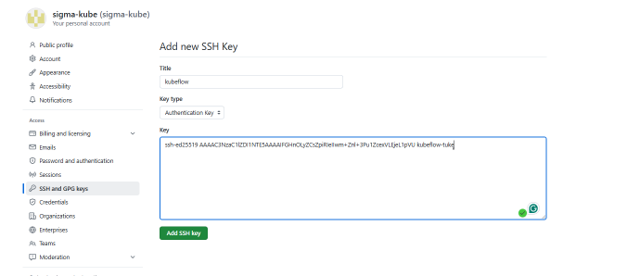
- Na GitHub: ikona profilu vpravo hore, Settings, vľavo SSH and GPG keys, zelené New SSH key.
- Title:
kubeflow. Key type: Authentication Key. Do poľa Key vlož skopírovaný riadok (Ctrl + V). Add SSH key. GitHub môže vypýtať heslo alebo kód z authenticator app.
- Skúška v termináli v Kubeflow:
ssh -T git@github.com
Prvýkrát sa opýta „Are you sure you want to continue connecting?“, napíš yes, Enter. Má vypísať „Hi jan-novak! You've successfully authenticated, but GitHub does not provide shell access.“ Druhá časť vety nie je chyba, je to správna odpoveď.
- Pri clone potom na GitHub v tlačidle Code vyber záložku SSH namiesto HTTPS. Adresa začína
git@github.com:. Zvyšok príkazu je rovnaký, ajcv01na konci:
git clone git@github.com:tuke-fberg-stehlikova/technologie-internetu-5k-cv01-jan-novak.git cv01
Repository, ktoré už máš naklonované cez HTTPS, prepneš na SSH v jeho priečinku:
git remote set-url origin git@github.com:tuke-fberg-stehlikova/technologie-internetu-5k-cv01-jan-novak.git
Ak ssh -T píše „Permission denied (publickey)“, kľúč na GitHub nie je alebo je skopírovaný neúplne. Zopakuj body 1 až 3 a skopíruj celý riadok vrátane ssh-ed25519.
Práca priamo na sigma v termináli
Po ssh jn123ab@sigma.tuke.sk si môžeš súbory pozrieť (ls, cat) alebo opraviť vo vi. Pamätaj však, že ďalšie uloženie z Kubeflow takú opravu prepíše. Čo má zostať, oprav v Kubeflow.
You need nothing from this part for the labs. It is here in case you want to set up your work differently or are curious how it works under the hood.
Git over SSH instead of HTTPS
In guide 04 you clone over HTTPS and sign in the first time with a code at github.com/login/device. The other option is to give GitHub your public SSH key from Kubeflow (the same one sigma has). Kubeflow then proves itself with the key and there is no sign-in at all.
- In Kubeflow, in the terminal, print the public key (if you do not have one, create it as in guide 02, part 5):
cat ~/.ssh/id_ed25519.pub
It prints one line starting with ssh-ed25519 AAAA… and ending with kubeflow. Select the whole line with the mouse and copy it (Ctrl + C, or right click, Copy). This line is public. The file without .pub is private; never print or copy it.
- On GitHub: the profile icon at the top right, Settings, on the left SSH and GPG keys, the green New SSH key.
- Title:
kubeflow. Key type: Authentication Key. Paste the copied line into the Key field (Ctrl + V). Add SSH key. GitHub may ask for your password or a code from the authenticator app.
- Test in the Kubeflow terminal:
ssh -T git@github.com
The first time it asks "Are you sure you want to continue connecting?", type yes, Enter. It should print "Hi jan-novak! You've successfully authenticated, but GitHub does not provide shell access." The second half of the sentence is not an error; it is the correct answer.
- When cloning, choose the SSH tab instead of HTTPS in the Code button on GitHub. The address starts with
git@github.com:. The rest of the command is the same, includingcv01at the end:
git clone git@github.com:tuke-fberg-stehlikova/technologie-internetu-5k-cv01-jan-novak.git cv01
A repository you already cloned over HTTPS is switched to SSH inside its folder:
git remote set-url origin git@github.com:tuke-fberg-stehlikova/technologie-internetu-5k-cv01-jan-novak.git
If ssh -T says "Permission denied (publickey)", the key is not on GitHub or was copied incompletely. Repeat steps 1 to 3 and copy the whole line including ssh-ed25519.
Working directly on sigma in the terminal
After ssh jn123ab@sigma.tuke.sk you can look at the files (ls, cat) or fix them in vi. Remember, though, that the next save from Kubeflow overwrites such a fix. Whatever should stay, fix in Kubeflow.
Keď to nejdeWhen it does not work
| Problém | Čo skúsiť |
|---|---|
| Po uložení sa nič nenahráva, žiadna hláška | Explorer musí ukazovať WEB a súbor musí byť pod ním; sftp.json je vo web/.vscode/ |
| V menu chýba Upload Folder / Sync… | otvorený je iný priečinok ako WEB (koniec adresy zmeň na ?folder=/home/jovyan/web); ak je WEB otvorený, rozšírenie sa stratilo: príkaz z návodu 02 (code-server --install-extension …), potom F5 |
| WinSCP neukazuje nové súbory | WinSCP sa neobnovuje sám, Ctrl + R |
| Hláška „Permission denied“ alebo „All configured authentication methods failed“ | kľúč nie je na sigma, opakuj návod 02 časť 5; skontroluj username v sftp.json |
| Stránka ukazuje starú verziu | F5, prípadne Ctrl + F5; skontroluj, či si súbor uložil |
| Stránka ukazuje 403 Forbidden | chýbajú práva; v termináli na sigma chmod 755 ~ ~/public_html a chmod -R 755 ~/public_html |
| Stránka ukazuje 404 Not Found | zlá adresa; priečinok na sigma sa musí volať presne ako v Kubeflow (malé písmená) |
| Stránka je biela alebo prázdna | chyba v PHP, hlášky sú vypnuté; pozri display_errors v časti 6 |
| Súbor nahraný cez WinSCP zmizol | prepísal ho Kubeflow; všetko ukladaj v Kubeflow pod WEB |
| Problem | What to try |
|---|---|
| Nothing uploads after saving, no message | Explorer must show WEB and the file must be under it; sftp.json is in web/.vscode/ |
| Upload Folder / Sync… missing from the menu | another folder than WEB is open (change the end of the address to ?folder=/home/jovyan/web); if WEB is open, the extension was lost: the command from guide 02 (code-server --install-extension …), then F5 |
| WinSCP does not show new files | WinSCP does not refresh by itself, Ctrl + R |
| "Permission denied" or "All configured authentication methods failed" | the key is not on sigma, repeat guide 02 part 5; check username in sftp.json |
| The page shows an old version | F5, or Ctrl + F5; check that you saved the file |
| The page shows 403 Forbidden | missing permissions; in the terminal on sigma chmod 755 ~ ~/public_html and chmod -R 755 ~/public_html |
| The page shows 404 Not Found | wrong address; the folder on sigma must be named exactly as in Kubeflow (lowercase) |
| The page is white or empty | a PHP error with messages switched off; see display_errors in part 6 |
| A file uploaded through WinSCP disappeared | Kubeflow overwrote it; save everything in Kubeflow under WEB |